
Table of Contents
- 1. Overview – How It Works
- 2. Set Up Enterprise Application Access
- 3. Grant Access to Log Analytics
- 4. Send Us the Log Analytics Workspace ID
- 5. Deploy the Manifest into Microsoft Teams
- 6. Tips for Using KSA
- 7. Contact Us
Overview – How It Works
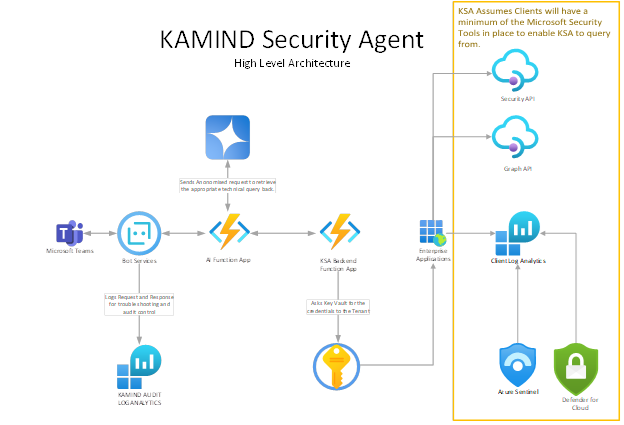
The KAMIND Security Agent (KSA) is a Copilot-style agent integrated directly into Microsoft Teams. It allows users to ask natural-language questions about their Microsoft security posture — including logins, malware detections, device compliance, conditional access, and more.
KSA translates those natural-language prompts into secure technical queries using services such as Microsoft Graph, Defender for Endpoint, and Log Analytics (KQL). All queries are executed within your own tenant environment, ensuring complete data residency and control.
KSA is designed to enhance your security team’s visibility by delivering fast insights into identity risk, endpoint health, policy enforcement, and alert activity — all without requiring knowledge of KQL or API syntax.
Minimum Requirements
Before using KSA, ensure your environment meets the following prerequisites:
- ✅ Required Services:
- Microsoft Sentinel with a connected Log Analytics workspace
- Office 365 Security & Compliance Center data connectors
- Microsoft Defender for Endpoint (P1 or P2)
- Microsoft Entra ID sign-in logs routed to Log Analytics
- Microsoft 365 E3+ or G5 Security licenses
- Required API Access:
- https://graph.microsoft.com – for user, device, and directory information
- https://api.securitycenter.windows.com – for Defender alerts and antivirus scan data
ℹ️ If these services or APIs are not in place or configured properly, some KSA functionality may be limited or unresponsive.
Step 1 – Set Up Enterprise Application Access
- Log in to the Azure Portal
Go to https://portal.azure.com and sign in as a Global Admin. - Approve the Enterprise Application
Paste the following link in your browser after logging in:
Approve KSA App
This grants necessary read-only access to directory data and creates the “KAMIND Security Agent” Enterprise Application.

| Role | Description | Example Prompts |
|---|---|---|
| User.Read | Sign in and read user profile | The app needs to know who the user is and from which tenant they are connecting. |
| Device.Read.All | Read all devices | "List all compliant devices." "What devices are not compliant?" |
| DeviceManagementConfiguration.Read.All | Read Microsoft Intune device configuration and policies | "List all device compliance policies." "Which policies are assigned to Intune groups?" |
| DeviceManagementManagedDevices.Read.All | Read Microsoft Intune devices | "Show device health summary." "Show the most vulnerable devices." |
| Directory.Read.All | Read directory data | "List all users in the tenant." "Who are the global administrators?" "What groups is clandis@kamind.com a member of?" |
| Policy.Read.All | Read your organization's policies | "What Conditional Access policies are in place?" "MFAExcludedUsersAndLocations" |
| RoleManagement.Read.Directory | Read all directory RBAC settings | "GlobalAdminAccess" |
| SecurityEvents.Read.All | Read your organization’s security events | "What is our Secure Score?" "List sign-in failures for the last 2 days." |
| UserAuthenticationMethod.Read.All | Read all users' authentication methods | "List MFA methods for alice@company.com." "Who does not have MFA configured?" |
| Machine.Read.All | Read all machine profiles | "List all onboarded machines." "What is the OS version of device ABC123?" |
| Alert.Read.All | Read all alerts | "List all security alerts in the last 24 hours." "Show high severity alerts in the last 7 days." |
| SecurityRecommendation.Read.All | Read Threat and Vulnerability Management security recommendations | "What are the top 5 exposure score recommendations?" "What are the device secure score recommendations?" |
| Software.Read.All | Read TVM software information | "List all software installed on device KAMIND-10495." |
| Vulnerability.Read.All | Read TVM vulnerability information | "List vulnerabilities by CVE." "What vulnerabilities are unpatched?" |
| Score.Read.All | Read TVM score | "What is our exposure score?" "Show the most vulnerable devices." |
| SecurityConfiguration.Read.All | Read all security configurations | "List all applied Defender configurations." "Show attack surface reduction settings." |
| SecurityBaselinesAssessment.Read.All | Read all security baselines assessment information | "List baseline deviations." "Which devices are not compliant with security baselines?" |
| LogAnalytics.reports.read.all | Read all usage reports | "Show antivirus scan events for the last 7 days." "Who are the risky users in the last 30 days?" |
These permissions are used to run technical queries based on your natural language input. KSA uses Azure OpenAI to interpret your prompt and securely query Microsoft Graph, Defender for Endpoint, and Log Analytics across your tenant.
Step 2 – Grant Access to Log Analytics
- In the Azure Portal, go to Enterprise Applications
- Search for and select KAMIND Security Agent (as shown in the image below)
- Go to Properties and copy the Object ID
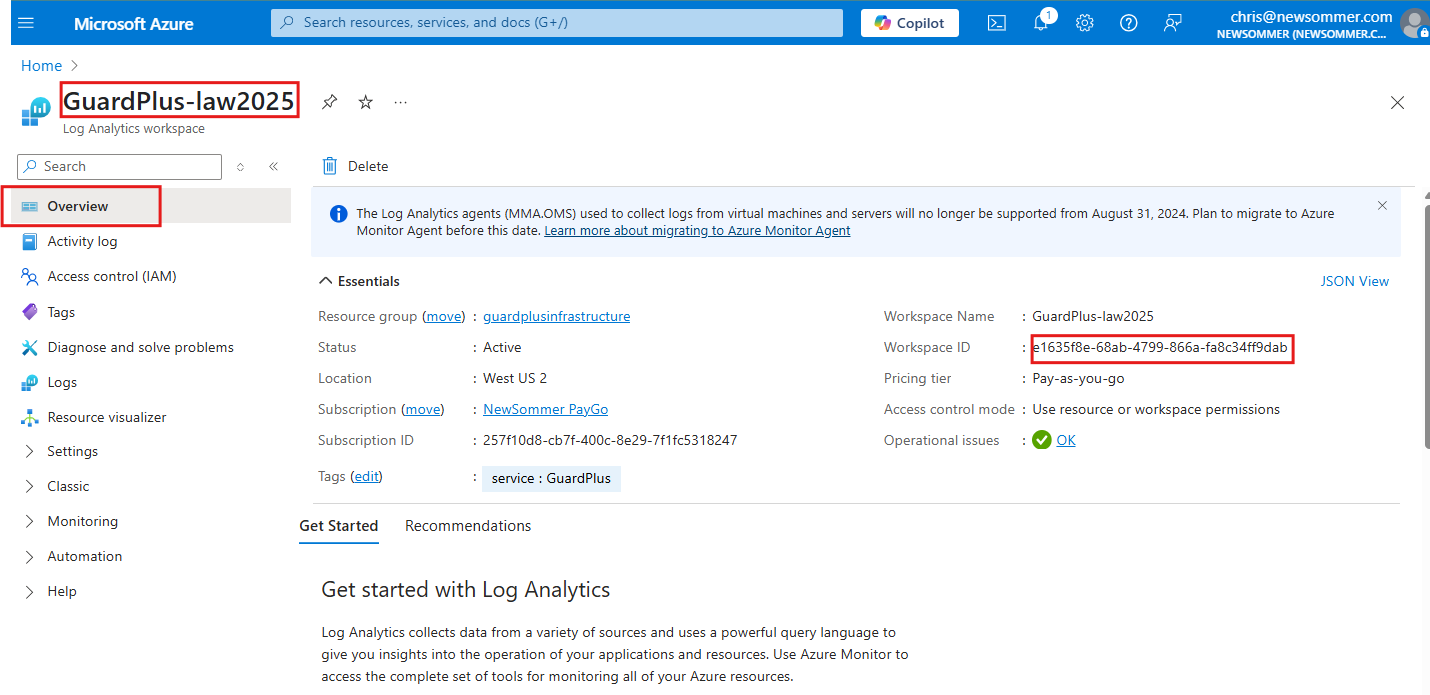
- Navigate to your Log Analytics Workspace (e.g., GuardPlus-law2025)
- Select Access control (IAM) → Add role assignment
- Choose Log Analytics Reader as the role
- Under Select members, search for and choose KAMIND Security Agent Application
- Click Select, then Review + assign to finish

Step 3 – Send Us the Log Analytics Workspace ID
- In the Azure Portal, open the Log Analytics Workspace that is connected to Microsoft Sentinel and other security data connectors.
- Go to the Overview tab and copy the Workspace ID (highlighted in the image below)
- Email the Workspace ID to support@kamind.com — this allows us to securely configure the KSA to query security logs within your environment.
Step 4 – Deploy the Manifest into Microsoft Teams
- Download the Manifest ZIP (you should have received this from KAMIND)
- Go to Teams Admin Center as a Teams Admin
- Enable custom app uploads by visiting Org-wide App Settings and making sure “Allow uploading of custom apps” is ON
- Navigate to Teams Apps → Manage Apps and click Upload at the top
- Select the manifest ZIP file you received from KAMIND
- After upload, locate the app and click Allow to approve it for tenant-wide availability
- Optionally, go to Teams Apps → Setup Policies and pin the app to the Teams sidebar for users
- Open Microsoft Teams and test the app by searching for it under “Apps” — you should see a welcome screen or confirmation message

Tips for Using KSA
Once the KAMIND Security Agent is deployed in Microsoft Teams, launch it from the sidebar to access the main screen. You’ll find categories of queries, each with example prompts to guide your investigation.
Security Events
View real-time or historical alerts from Microsoft Defender and Sentinel.
- Mail Flow Alerts – Detect abnormal or blocked mail patterns (e.g., spoofing, transport rules)
- Identity Protection Alerts – Identify risky sign-ins (e.g., leaked credentials, impossible travel)
- Email Action Alerts – Track inbox rule changes or mass deletions
- Security Alerts – View alerts from Defender for Endpoint, Identity, and Cloud Apps
- DLP Alerts – Detect when sensitive data is shared, accessed, or exfiltrated
Example prompts:
- What types of Sentinel alerts did we have this week?
- How many Office 365 ATP alerts did we get this week?
Logins
Investigate sign-in activity, failures, and risks across your environment.
Example prompts:
- How many users logged in this week from outside City A?
- How many login attempts originated outside the U.S.?
MFA (Multi-Factor Authentication)
See which logins required MFA and which didn’t.
Example prompts:
- How many sign-ins used MFA today?
- Which devices signed in using MFA today?
Conditional Access
Review which Conditional Access policies were triggered and which were bypassed.
Example prompts:
- What Conditional Access policies were applied to logins this week?
- What logins didn’t trigger Conditional Access for jmsmith@contoso.com this week?
Virus Scans
Summarize antivirus scan data from Defender for Endpoint.
Example prompts:
- How many full and quick scans ran this week?
- What antivirus scans were run today on device Device123?
Devices
Get a list of devices and their compliance policies.
Example prompts:
- What devices do we have?
- What compliance policies apply to Windows devices?
Users
View user accounts, their groups, and roles.
Example prompts:
- List all users in Active Directory.
- Which groups is jsmith@contoso.com in?
Scores and Reports
Review your organization’s security posture scores.
Example prompts:
- What is my exposure score?
- What is my secure score for devices?
- What is my Defender for Cloud score?
Contact Us
KAMIND IT has been developing growth- and security-focused cloud computing solutions that help clients achieve their business goals — even in the most challenging circumstances — for over two decades.
As a full-service cybersecurity firm and Microsoft Tier 1 Gold Partner, we specialize in advanced, modern strategies to protect organizations against cyber threats and help them compete with much larger enterprises.
If you need support with the KAMIND Security Agent (KSA) or have technical questions, please email us at: support@kamindit.com
If you’re looking to improve your overall security posture and want our sales team to contact you about KSA or other cybersecurity services, reach out to: sales@kamind.com