


Ever since the evolution of M365 and Azure, Microsoft has come out (and continues to) with new tools to help automate processes when it comes to the deployment of their software applications. One such tool is called “Autopilot”, and is further reviewed in this blog.
The Details
At a high level, Microsoft Autopilot is a package that is used to configure Windows based devices, with the following Operating Systems:
- Windows 10
- Windows 11
- Windows HoloLens 2
The latter is a system that is used for creating holograms, based upon the principles of Augmented Reality (to use Autopilot in this instance, click here). Autopilot has been designed to get Windows hardware ready for productive use.
Rather than manually setting up each device, it can all be done en masse with Autopilot, thus allowing employees to conduct their daily tasks in a much quicker fashion. This creates a fast-onboarding process.
Although it is typically used for the configuration of new devices, it can also be used if the device has to be used again, as long as it has not reached its end of life. A strategic benefit of Autopilot is that the IT Department does not have to maintain a separate provisioning infrastructure.
How It Works
When the Windows based devices are in the beginning stages of provisioning, it is the original software that is used for configuration. For example, if your IT Department has to deploy ten new devices, it will use the original Operating System (OS) that they come with.
There are no customized disk images that are used, and this is also a huge benefit. This will allow for the devices to be in a “business ready” state in just a matter of minutes.
Once the devices have completed the process with Autopilot, you can also use it to manage the following functions:
- Create and deploy all kinds of policies (especially security-based ones);
- Install mobile apps that adhere to your Cybersecurity rules;
- Upgrade any Widows based OS to a newer one that has more functionalities.
Also, after the Windows devices have been configured, you don’t have to use Autopilot for the subsequent management of them. Rather, you can use the following:
- Microsoft Intune;
- Windows Update Manager;
- Windows Configuration Manager;
- Even 3rd party tools can be used, as long as they are supported by Microsoft.
Also keep in mind that not all Windows devices can be used off the shelf with Autopilot. The OS that is used in them must support the use of it.
The Process
The entire flow of using Autopilot for Windows device configuration is illustrated in the diagram below:
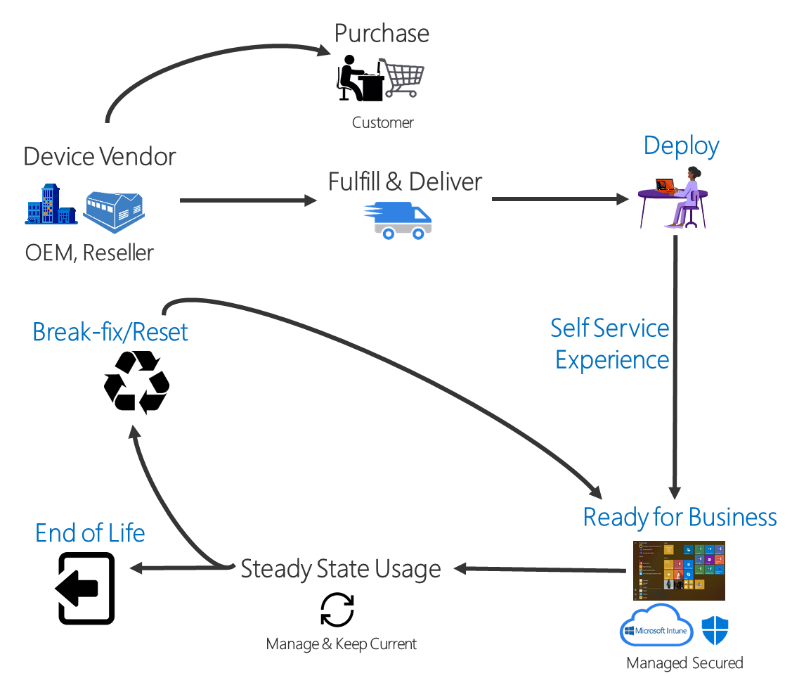
(SOURCE: 1).
The Benefits
Using Autopilot brings in a number of key advantages to a company, and some of these are as follows:
- The entire process is fully automated. For the employee, this means that their device can be enabled for productive use with just a few clicks of the mouse, and all the IT Department has to do is connect the Windows device to a network, and authenticate/authorize the employees credentials for whatever access to shared resources they need.
- You can easily integrate devices into the Azure Active Directory.
- You can automatically enable your devices for Mobile Device Management.
- You can easily create groups for a particular device based upon the profile that has been established for them.
- If a device malfunctions, you can automatically restore it back to its previous state by making use of the “Autopilot Reset”; more information about that can be seen here.
Conclusions
If you need help in using Autopilot, please contact us today!
Sources
- https://learn.microsoft.com/en-us/mem/autopilot/windows-autopilot


